Interview Copilot in Depth
Hear questions live and get answer ideas in seconds during real interviews, staying invisible to screen sharing and recording the whole time.
AI Interview Copilot is a capability unique to Kuaimian's desktop app: during a real video interview, it sits quietly at the edge of your screen, capturing the interviewer's questions in real time, transcribing them live, and — drawing on your resume and target job — giving you answer ideas, keywords, and an opening line within seconds. The entire assist window is invisible to screen sharing and recording — the other side can't see it, and it won't show up in the recording. It doesn't interview for you; it just hands you ideas when you freeze or lose your train of thought.
Before you start
Interview Copilot relies on system-level screen and audio capabilities and can only run in the desktop app.
| Requirement | Notes |
|---|---|
| Desktop App | Download and install the desktop app first; the Web version doesn't have this capability |
| Screen-share permission | Lets Kuaimian understand the questions and conversation on your screen |
| System audio capture permission | Recognizes the interviewer's spoken questions in real time |
For the steps to grant both system permissions, platform differences (macOS / Windows), and how stealth works, see Screen-Share Stealth and Permission Setup.
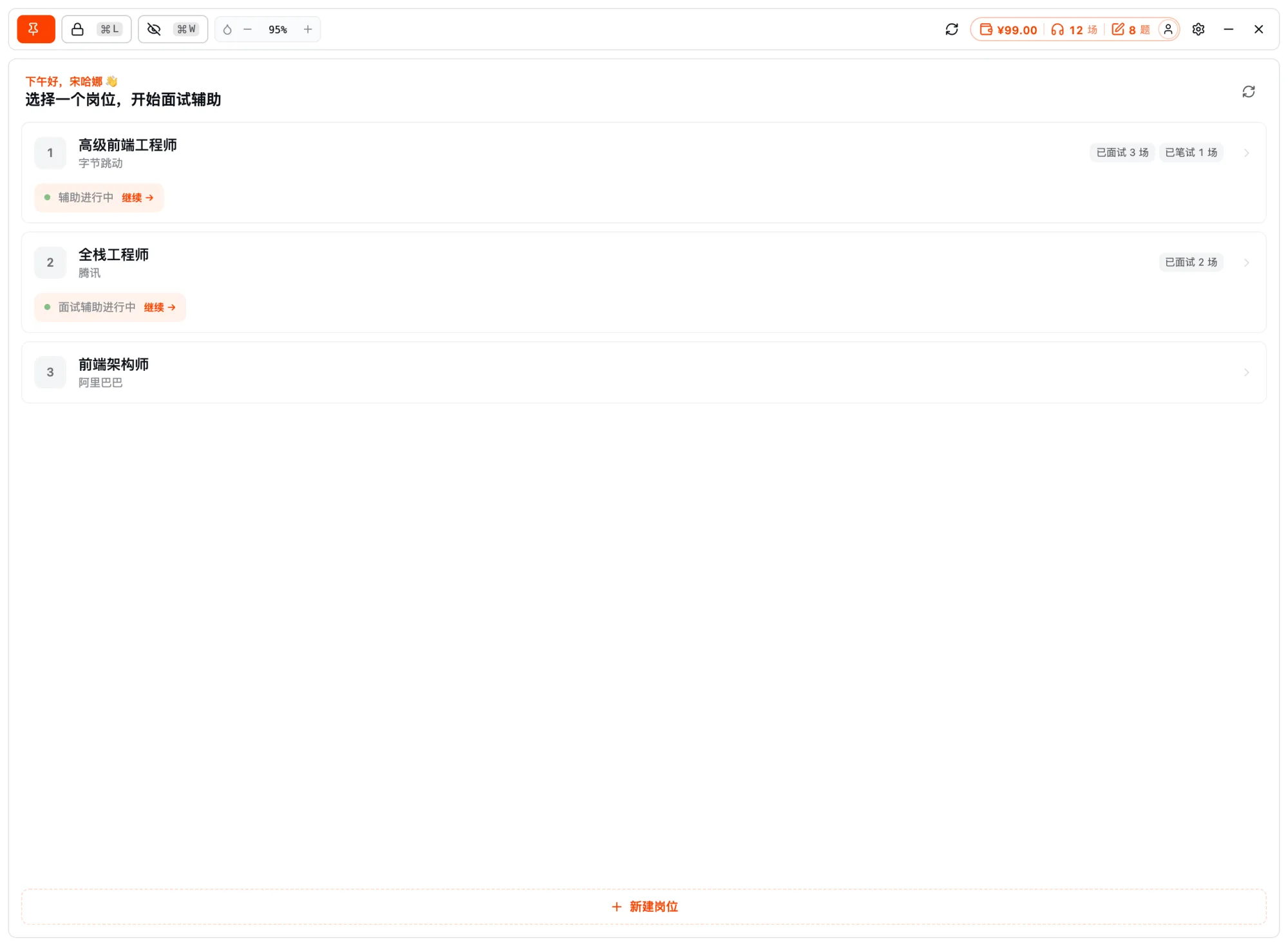
Step 1: Pick a job + turn on screen-share stealth
Open the client before the interview begins:
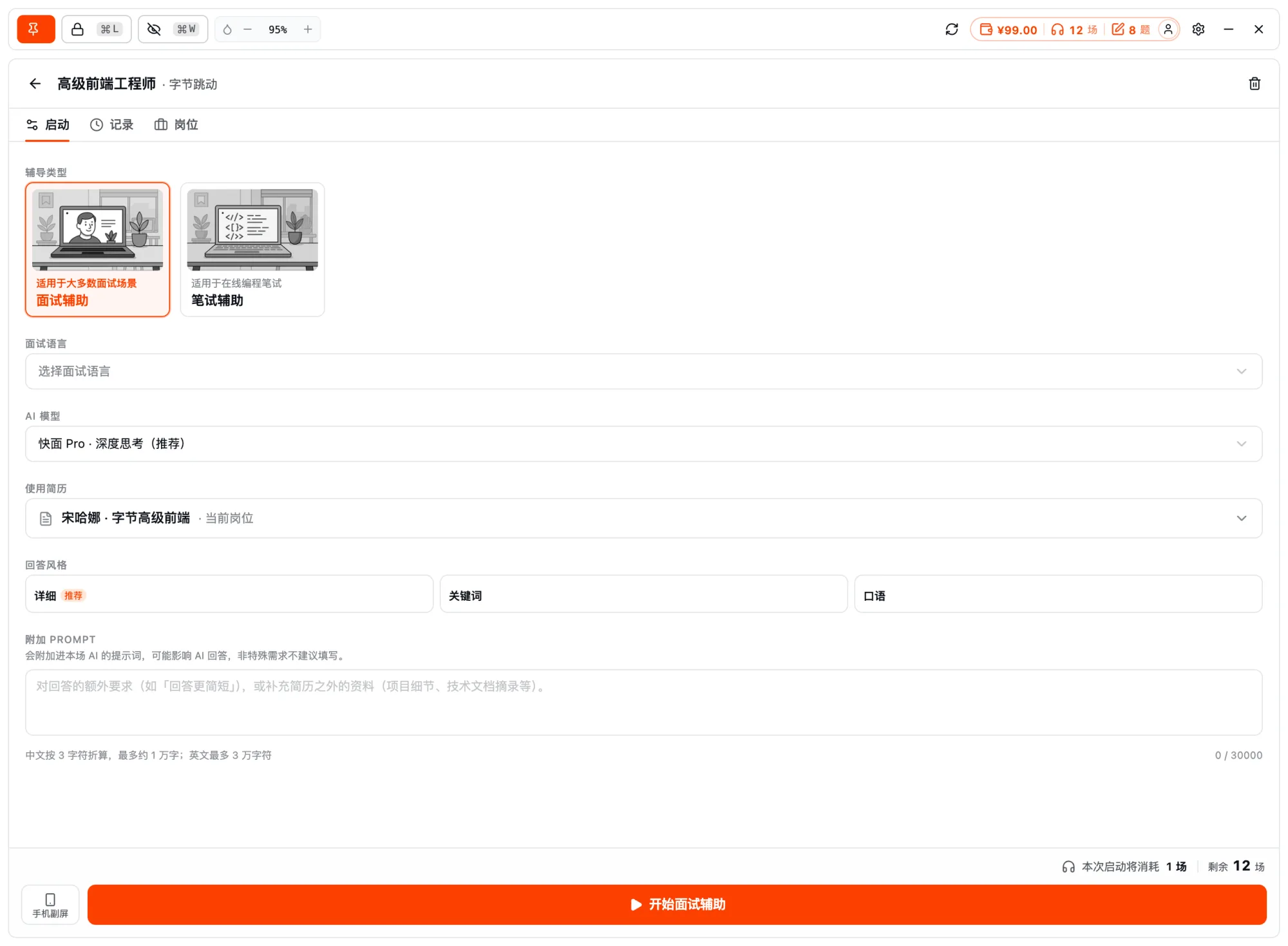
- Pick a target job: This serves as the basis for assistance — the AI organizes answers around your resume and the job's JD, rather than giving generic textbook answers.
- Turn on "screen-share stealth": Enable it in settings so the assist window can't be captured by sharing or recording. Before the real interview, it's a good idea to start a test share once to confirm the window really doesn't appear on screen.
- Position the window: Dock the floating window to the edge of your screen and adjust its transparency so it doesn't block the interview view.
Step 2: Hear questions live and get answer ideas
Once the interview starts, the copilot enters a real-time loop that runs automatically throughout — no manual operation needed:
- System audio capture: The client continuously captures the interviewer's voice.
- Real-time transcription: The voice is captured locally, uploaded encrypted to the server, and transcribed to text in real time; once a complete question is recognized, an answer is triggered.
- Instant output: Almost in sync, the screen shows three kinds of prompts — answer ideas (how to answer, which points to cover), keywords (terms / scoring points not to miss), and an opening line (how to start your first sentence).
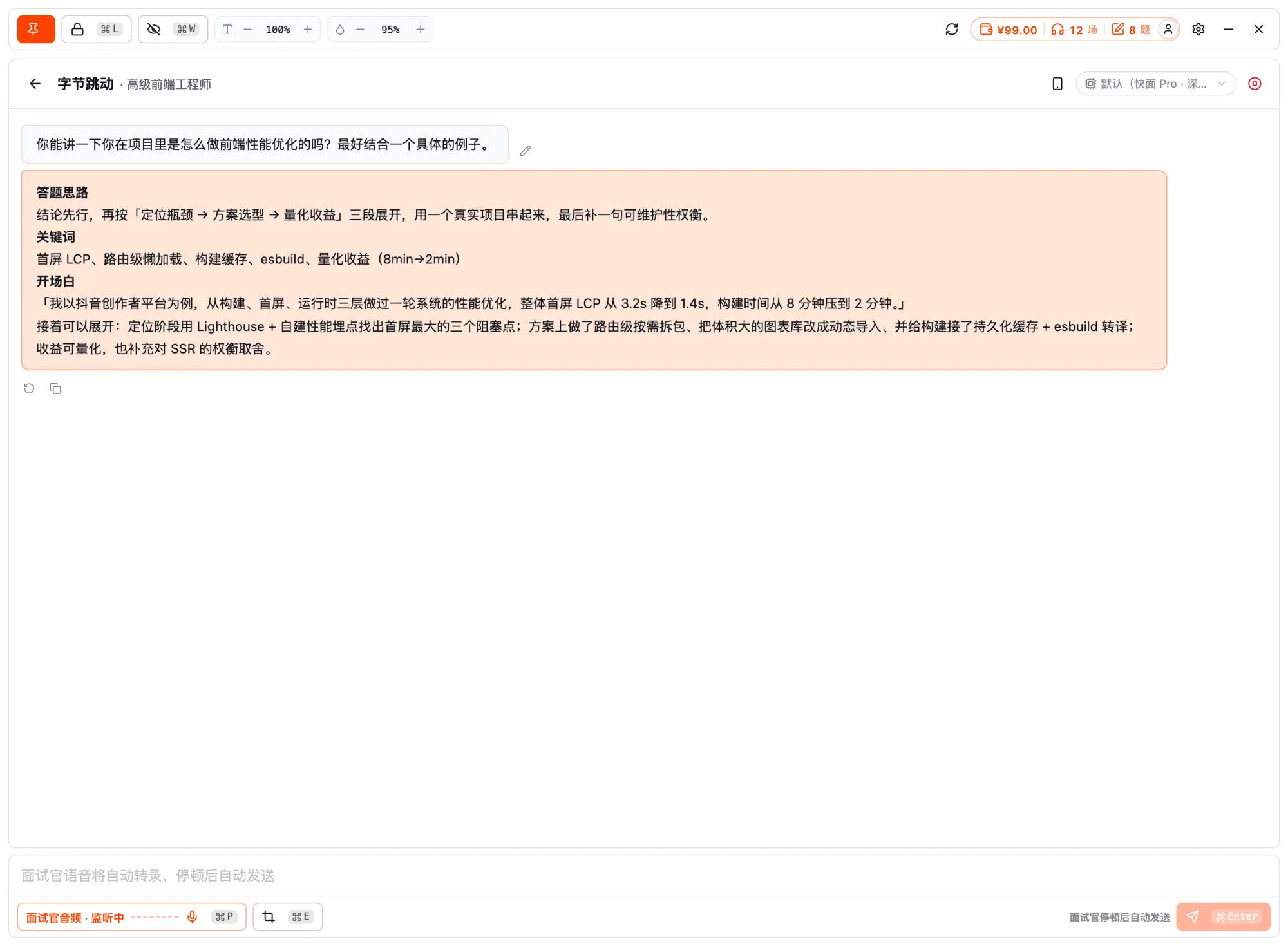
You don't have to read it word for word — a glance from the corner of your eye is enough to organize your own phrasing, so your answer still sounds like you.
Screenshot to feed a question: ⌘E
Some moments require answering by reading the screen (live coding, system design, picture-based questions, questions in a shared document). When that happens, press ⌘E (the default; Ctrl+E on Windows) to capture the current screen and send it along with the question to the AI, which reads what's on screen before answering. You can capture a region or the full screen, stack up to 3 shots, and also paste in images. Screenshots are uploaded to the server for recognition on demand. For the full workflow on coding/written tests, see Coding-Test Assist.
Floating window and shortcuts
Prompts appear in a frameless, transparent floating window, designed so as not to interrupt the interview:
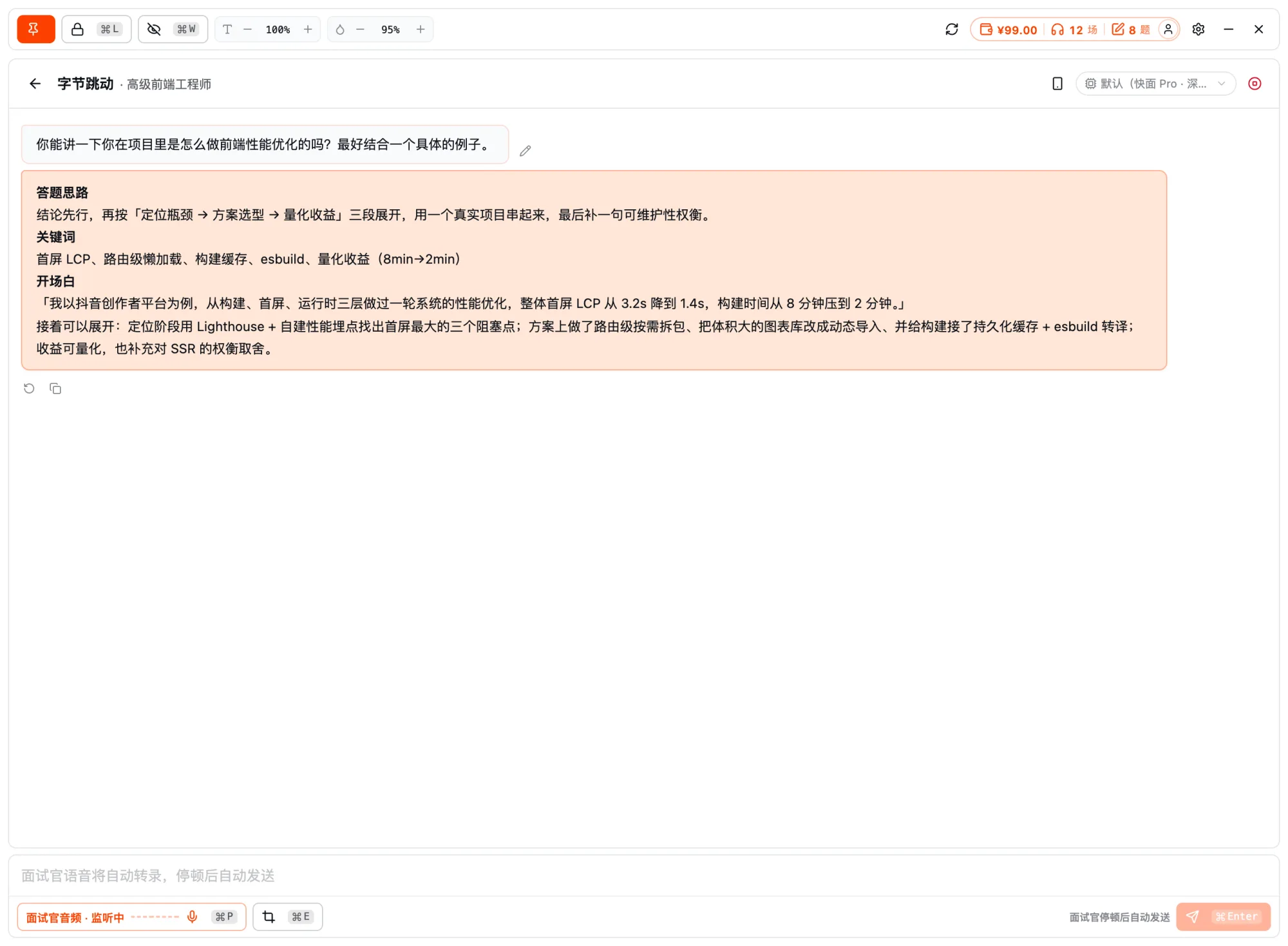
- Edge docking: Snaps to any edge of the screen, out of your line of sight and off the interview view.
- Adjustable transparency: Tune it on the fly — clear when you need it, faded into the background when you don't.
- Free dragging: Move it wherever feels comfortable at any time.
- Always invisible: The window renders only on your local screen and never enters the screen-share / recording stream.
All of these are customizable in settings; below are the defaults (macOS shows ⌘, Windows shows Ctrl):
| Shortcut (default) | Action |
|---|---|
| ⌘E | Screenshot the current screen and feed the question to the AI (region/fullscreen, up to 3 shots, paste supported) |
| ⌘Enter | Send the current content to the AI |
| ⌘D | Delete the last screenshot |
| ⌘L | Toggle lock (mouse click-through on/off) |
| ⌘P | Start/pause interviewer (system-audio) transcription |
| ⌘Shift+H | Show / hide the interviewer transcript pane |
| ⌘↑ / ⌘↓ | Scroll chat up / down |
| ⌘W | Hide the window to the tray |
Related docs
- Coding-Test Assist — solving help for coding questions and online written tests
- Screen-Share Stealth and Permission Setup — how stealth works, granting permissions, privacy notes
- Download and Install the Desktop App