The Equipment and Environment Checklist for Remote Video Interviews (Plus How to Run Your Interview Copilot Reliably)
Choppy network, muffled audio, dim lighting, messy background—remote interviews often go sideways not because you lack skill, but because your gear and environment weren't ready. A pre-call checklist for equipment, network, and environment.
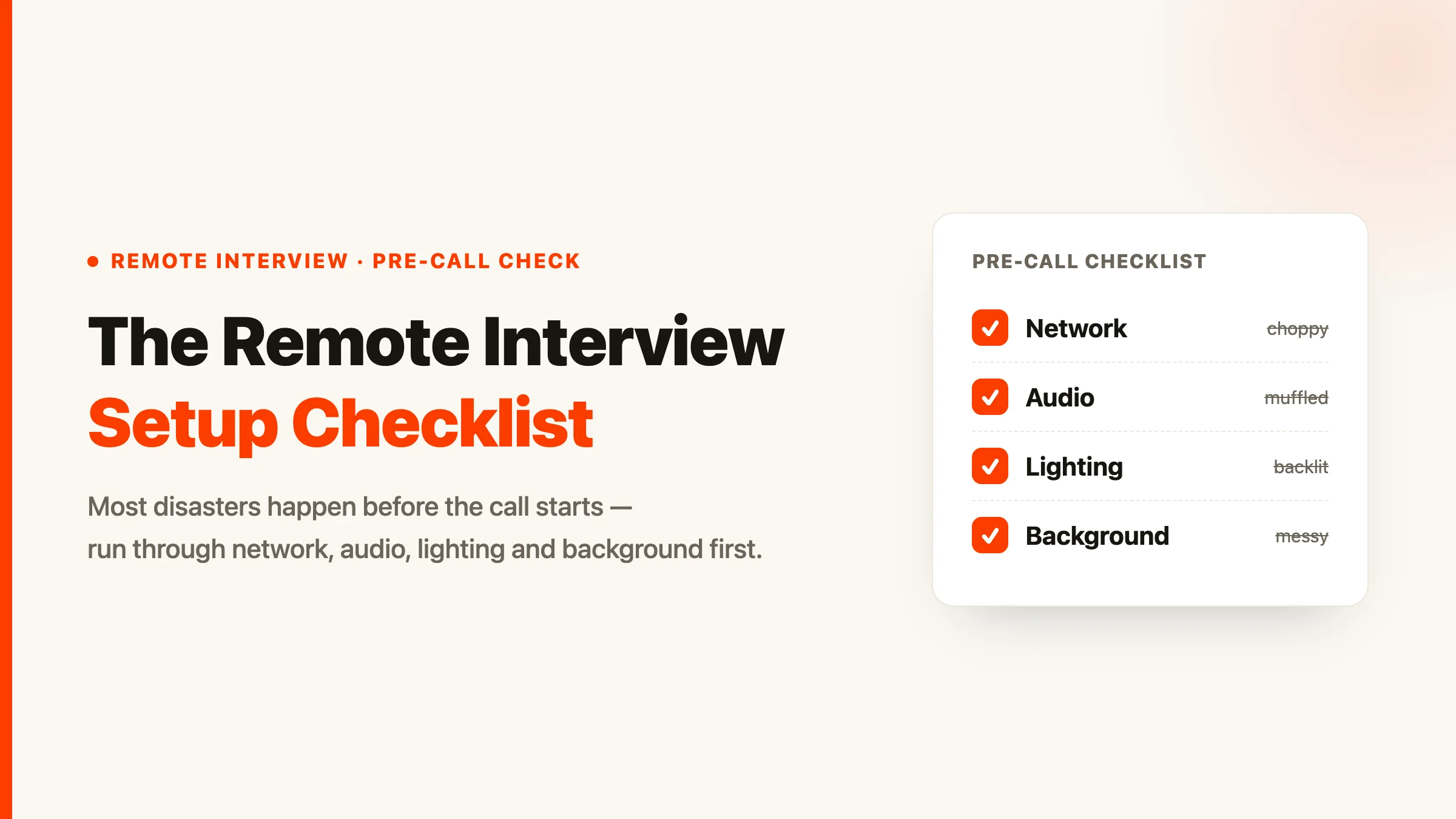
In a remote video interview, the interviewer's first impression of you comes half from what you say and half from the quality of your picture and sound. Lag, echo, backlight, and a cluttered background all quietly drag down their assessment. The good news is that almost all of it can be eliminated before you go live. Run through this checklist the night before the real interview.
Network: Stable Beats Fast
The thing to fear most in an interview isn't slowness—it's dropping mid-call.
- Use an Ethernet cable if you can; it's far more stable than Wi-Fi. If Wi-Fi is your only option, get as close to the router as possible.
- Close bandwidth-hungry programs: pause background downloads, cloud sync, and video streams on other devices.
- Have a Plan B: keep your phone's hotspot on standby, and tell the interviewer in advance, "If I get disconnected, I'll reconnect immediately."
Equipment: Camera, Microphone, Power
- Camera at eye level: prop your laptop up so the camera is roughly level with your eyes, avoiding an up-the-chin angle. Looking at the lens ≈ looking the interviewer in the eye.
- Prefer a headset mic: it significantly reduces echo and ambient noise, and is much cleaner than a laptop's built-in mic.
- Plug in the power: stay plugged in the whole time; don't gamble on your battery.
- Turn off notifications: message pop-ups and incoming calls interrupt you and can leak private information—turn on "focus mode" ahead of time.
Environment: Lighting and Background
- Light from the front: face a window or put a lamp in front of you; don't sit with your back to the light source (backlight turns you into a silhouette).
- Clean background: a plain white wall or a tidy bookshelf is safest; virtual backgrounds tend to glitch when you move, so use them with caution.
- Block interruptions: close the door, let your family know, and settle any pets.
A 5-Minute Self-Check Before Going Live
- Join the meeting 5–10 minutes early and test audio and video
- Camera view: framing, lighting, background all OK
- Record a test clip to confirm the mic is clear with no echo
- Keep your resume, the role's JD, and your questions within reach
- Take a sip of water and breathe deeply
How to Run Your Interview Copilot Reliably
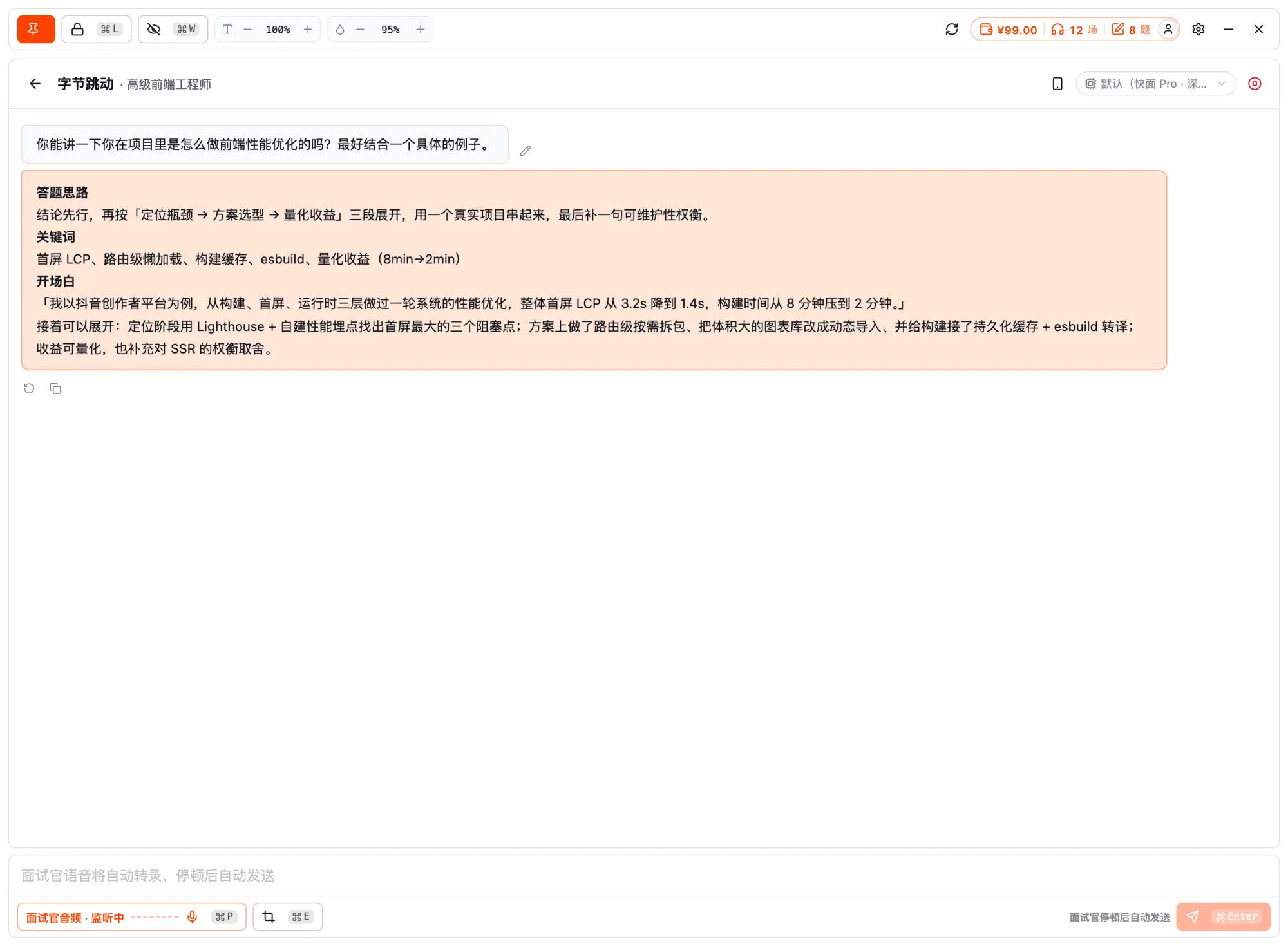
If you're using Kuaimian's Interview Copilot for real-time prompting, a few habits make it more reliable in a remote setting:
- Do a full run the night before: grant the screen-sharing, system-audio-capture, and floating-window permissions ahead of time—don't wait until the interview starts to click through them. Its floating window is transparent and borderless, so it doesn't cover the interview software's view.
- Treat prompts as a backstop, not a script: keep your eyes mainly on the lens, glance at the prompts only when you stall to catch a keyword, and put it in your own words—the other side can tell instantly if you're reading off the screen word for word.
- Run through high-frequency questions in a mock interview first: in the real interview the copilot is just insurance; what actually steadies you is having practiced.
Your equipment and environment are the only variables you can control 100%. Dial them in to their best ahead of time, and all your remaining attention can go to what you're saying.
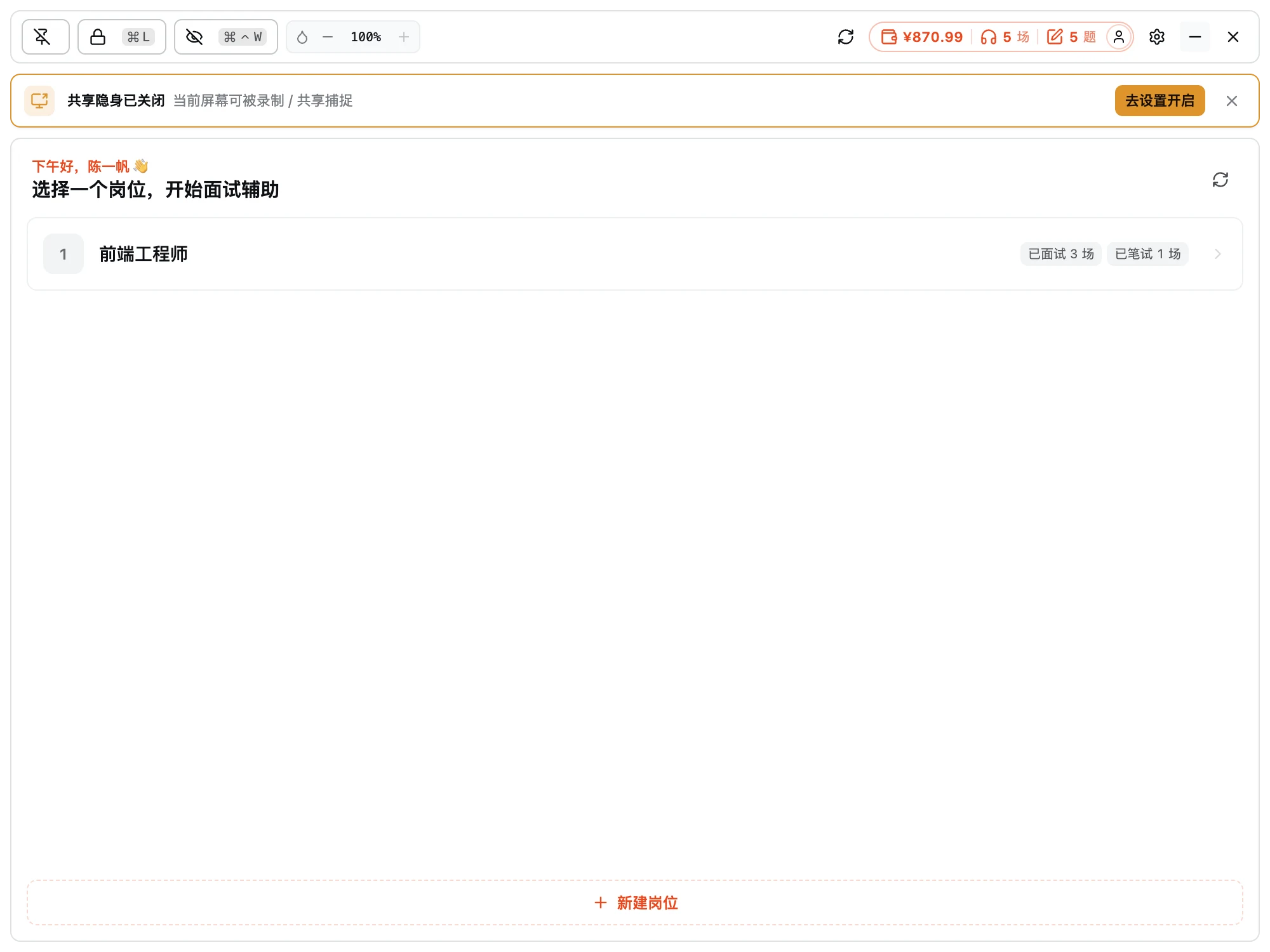
Ready?
For your next interview, use Kuaimian
Start free: try resume optimization and mock interviews to get a feel for how the AI responds, then decide whether to top up on interview assistance.